


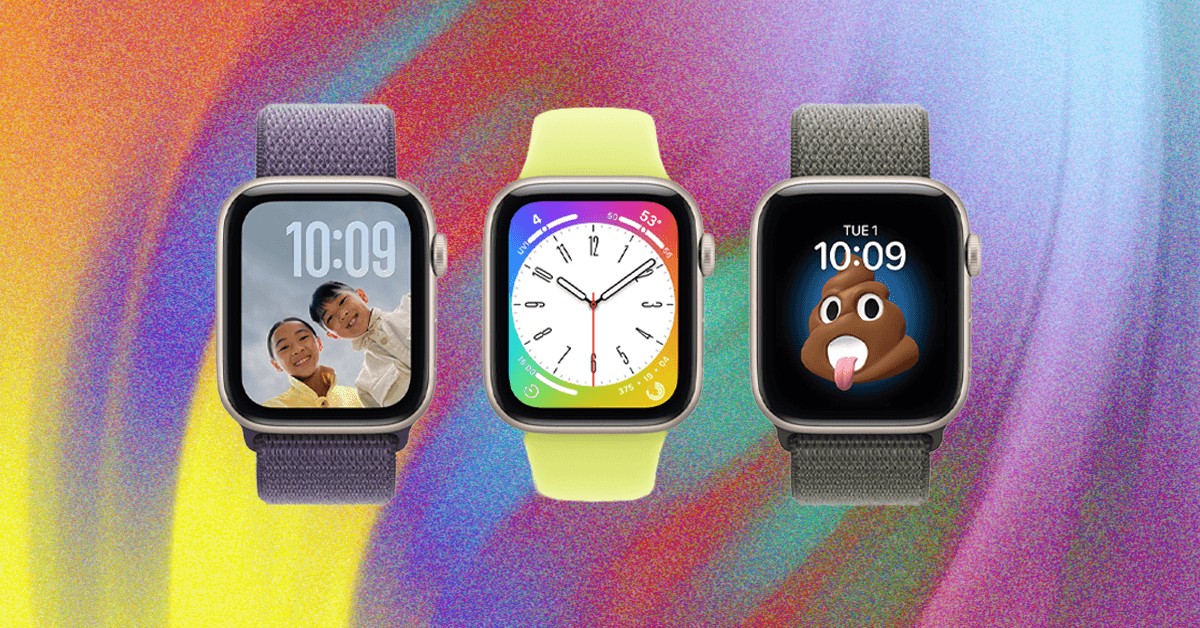
The debate over children and technology is heating up, with schools banning smartphones and parents seeking safer alternatives. But for iPhone users, an Apple Watch offers a practical compromise—especially with Apple’s Family Setup feature. This guide walks you through setting up an Apple Watch for your child, leveraging its safety and communication features while addressing growing concerns about screen time and security.
Why an Apple Watch for Kids?
The initial push for kids’ Apple Watches came in 2020 with the release of WatchOS 7’s Family Setup, allowing parents to connect older Apple Watch models to their plans. While some schools now ban smartwatches outright, many parents still prefer them over unrestricted smartphone access. The key advantage? Larger companies like Apple face pressure to swiftly address security flaws, a reassurance for parents wary of third-party devices.
What You’ll Need
To set up an Apple Watch for your child, you need:
- An Apple Watch Series 6 or later with cellular capabilities (older models may work but aren’t recommended for compatibility).
- An iPhone running iOS 14 or later.
- Apple IDs for both you and your child (create one if necessary).
Step-by-Step Setup
- Unpair and Erase: Begin by unpairing an old Apple Watch. In the Watch app on your iPhone, navigate to All Watches, tap the info button, and select Unpair Apple Watch. If this doesn’t fully erase the watch, manually reset it via Settings > General > Reset > Erase All Content and Settings.
- Family Setup: Open the Watch app, and choose “Set Up for a Family Member.” Use your phone’s camera to scan the watch, or pair manually.
- Apple ID & Permissions: Set a passcode, select your child from your family list, and enable cellular service. Configure Ask to Buy to prevent unauthorized app store purchases.
- Contact Management: Limit your child’s contacts by toggling iCloud Contacts on your phone and managing them via Screen Time > Family Member > Communication Limits. You’ll need to request and approve permission from your child’s watch for this.
- Schooltime: Activate Schooltime to block apps and distractions, allowing emergency calls only. Manage schedules via All Watches > Your Child’s Watch > Schooltime > Edit Schedule. Your child can bypass it, but you’ll receive reports.
Managing Your Child’s Apple Watch
Updates and settings can be managed via All Watches > Family Watches > Your Kid’s Apple Watch. Explore Apple’s full settings list for additional customization, including health details, Medical ID, and smart replies.
Making it Fun and Useful
Customize the watch face, buy a kid-friendly band, and explore useful features:
- Find My: Locate your child on a map.
- Messages: Stay in touch via text.
- Walkie Talkie: Communicate instantly in crowded areas.
- Mindfulness App: Encourage calm with guided breathing exercises.
- Siri: Let your child ask questions and explore information.
Ultimately, setting up an Apple Watch for your child is about striking a balance between safety, communication, and responsible technology use. It’s a compromise, but one that many parents find effective in today’s digital landscape.


